Remember that the organization short name is always "usda"
Compatibility Update: I used US Bank with Firefox on Oct 30, 2009 and everything seemed to work (and faster that with Internet Explorer)
There is no official update on this, but you may want to experiment.
See the instructions below to get a desktop shortcut that forces USBank to open in Internet Explorer
- Do NOT try and enter the favorites in the Managing Acct Codes Favorites.
Go directly to your transactions and select a 'Pending' transaction - Start with one of your newest transactions, as the old ones may still have the old accounting code format
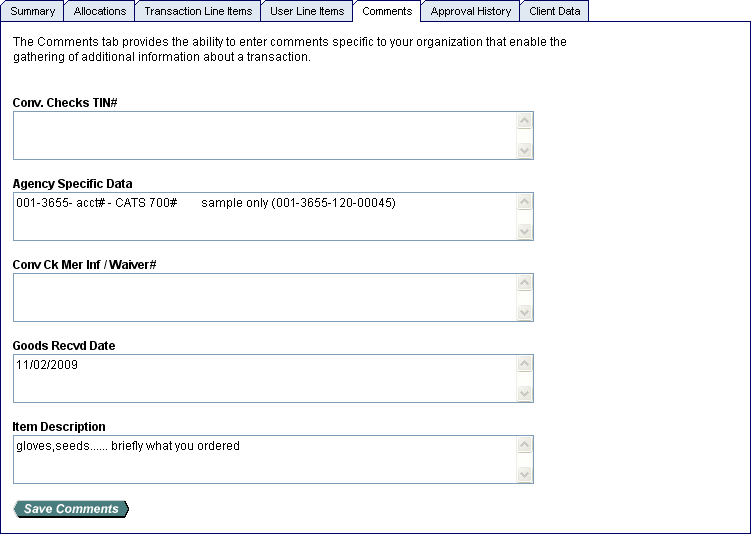
- go to 'Comments' enter the 700# & received date as we did before
- Then go to 'Allocations' tab
- Next to the accounting code, click on the magnifying glass
- On the next screen, in the "Value:" box enter 3655120 (or other number for other units, eg: 3655110 or just 3655 to get a complete list)
- Change the "Search Type:" from "Begins with" to "Contains"
- click 'Search'
- When the accounting info appears, click on 'Select' next to the correct number, e.g. "036013655120"
- and then 'Save'
- The screen will return to the allocation section. Then scroll over to the right and check the BOC code and change that to 2670 if necessary (in the same manner as the accounting code)
- Select 'Save'
- Check to make sure they both changed in the upper right corner like you did before
- After both are changed then scroll to the right and click on 'Save as a Favorite'
- The 'My Favorites' screen will appear and you can name this account as you wish, just like you did before
- The next time you go into reallocate (reconcile) you can use the drop down selection and it should work. Please check to make sure all numbers are correct before 'Approving'.
Important - If you have a grant, also set up a second shortcut for the grant, as you must reconcile to the grant in US Bank to have it properly credited. For example:
| For Grant | Use appropriate account number |
|---|---|
| CSREES/Simon | 031013655 |
| CSREES/Spooner | 031013655 |
| CSREES-SCRI/Havey | 031013655 |
| Michigan State/Jansky | 031013655 |
specify Cardholder Account Search
then enter Account # (Your Credit Card #) OR Your Last Name OR SS#
search
- In Agency Specific Data, we are required by headquarters to enter the complete CATS II number, 101-3655- acct# - CATS 700#, e.g.:
If the order is split into two or more charges, append "P" for partial, and "C" for the last charge that completes the order, e.g. 601-3655-120-00001P and 101-3655-120-00001C601-3655-120-00045 - In Goods Recvd Date, enter the date received, e.g.:
11/02/2026 - In the Item Description section, provide a brief description of items ordered, e.g.:
gloves, seeds
Be careful at the start of a new fiscal year, make sure you use the correct fiscal year when reconciling. If the purchase is from the previous fiscal year and was slow to be charged, use the previous year and not the current "26" version!
(If Change to: is not on the screen, it means that you do not have any Active shortcuts, go back to step 2)
 button to save the change (Don't forget this save step!)
e.g.correct is 03|10| | | | |013655120| | | | | |36 | |2670| as compared to incorrect 03|10| | | | |013655777| | | | | |36 | |3140|
 button
|
Press Select Approver Enter the Last Name of your approver (supervisor); then click Search. If nothing shows up, try leaving the box empty and then click Search Click to the left of your approver to select (If your supervisor's name does not appear in the list, contact Dolores) Check the box at the bottom of the screen Set selection as your default approver so that you only have to do this once. then click Select Approver |
button(Note, the A-circle icon
 stands for "reAllocated", not for "Approved")
 at the very bottom of the screen
 CATS II with IExplorer
 US Bank with IExplorer