This page was last updated on Wednesday, 09-Jul-2014 12:29:03 CDT
Installing AFS on 64-bit Windows 8
- Download the AFS installer from
http://www.openafs.org/windows.html
e.g. 64-bit MSI installer
- Run this installer by double-clicking it, or select run from download window
- Note, figures from instructions are from earlier version, not updated yet for Windows 8
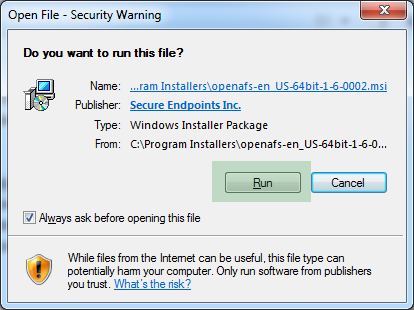
Click Run
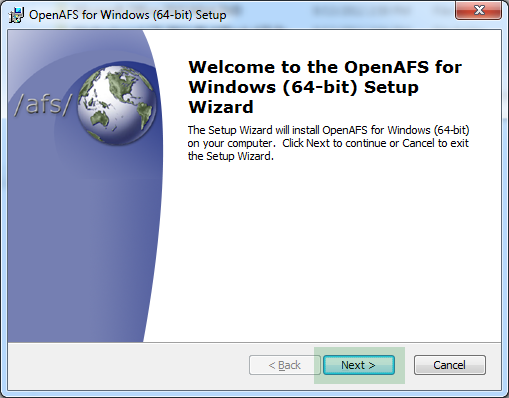
- Click Next
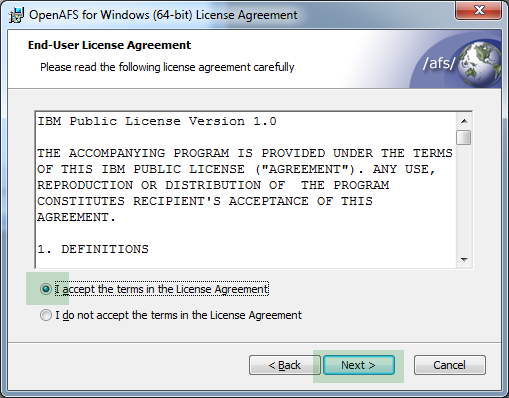
- Accept, and click Next
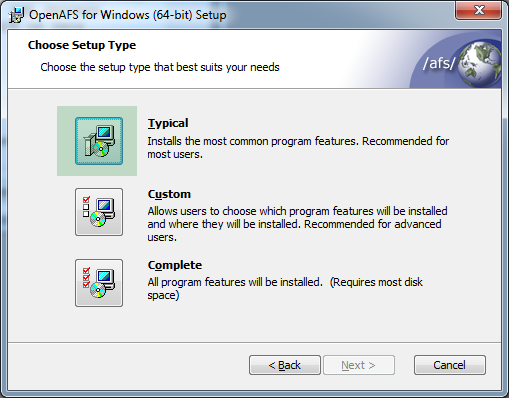
- Click Typical
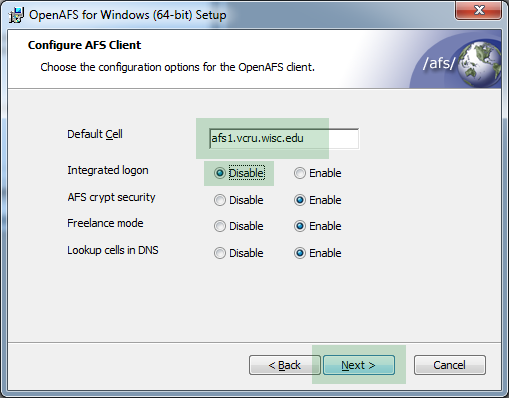
- Enter default cell afs1.vcru.wisc.edu, disable integrated login, and click Next
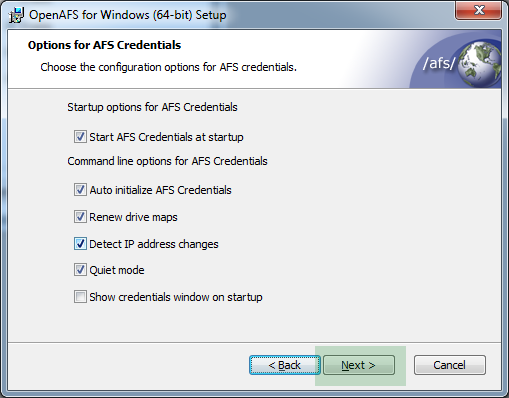
- Click Next
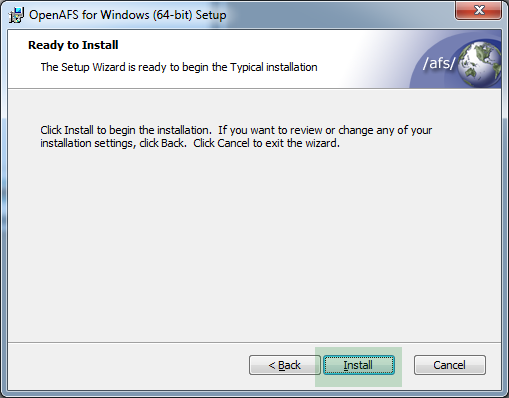
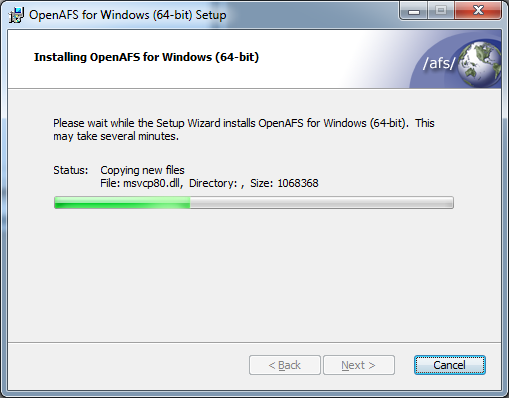
- Click Install
- Allow install with User Account Control dialog, then wait...
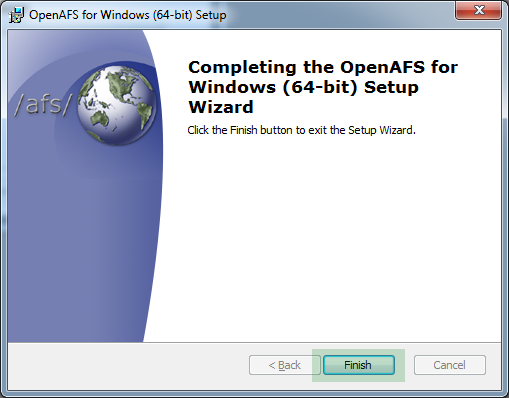
- Click Finish
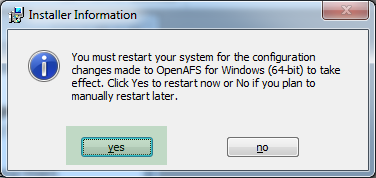
- Click Yes to restart computer (save any open files first!)
- Go to control panel. Change "View by:" to "Small Icons"
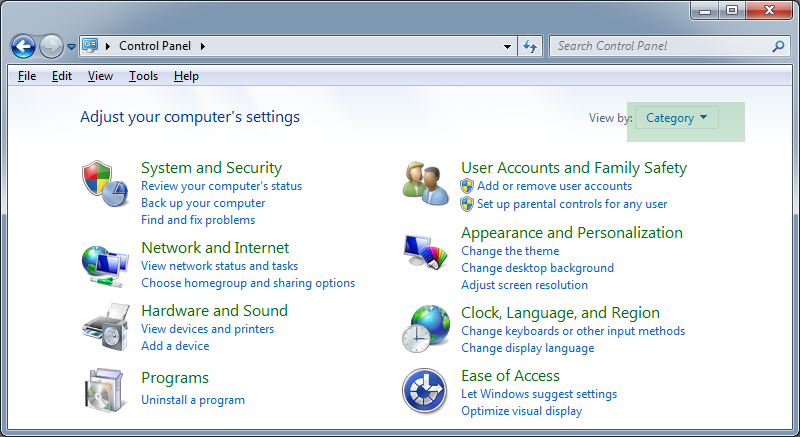
- If control panel does not launch, you will have to edit the file manually!
Get a command prompt in administrator mode (type cmd in search box and right
click "Run as administrator")
cd "\Program Files\OpenAFS\Client"
notepad CellServDB
add these lines anywhere in the file
>afs1.vcru.wisc.edu     #Vegetable Crops Research Unit
128.104.238.50                   #fs6.vcru.wisc.edu
128.104.23.62                    #fs7.vcru.wisc.edu
128.104.239.39                   #fs2.vcru.wisc.edu
Save the file
Reboot
- Click on "AFS Client Configuration", then "Yes" for User Account Control dialog
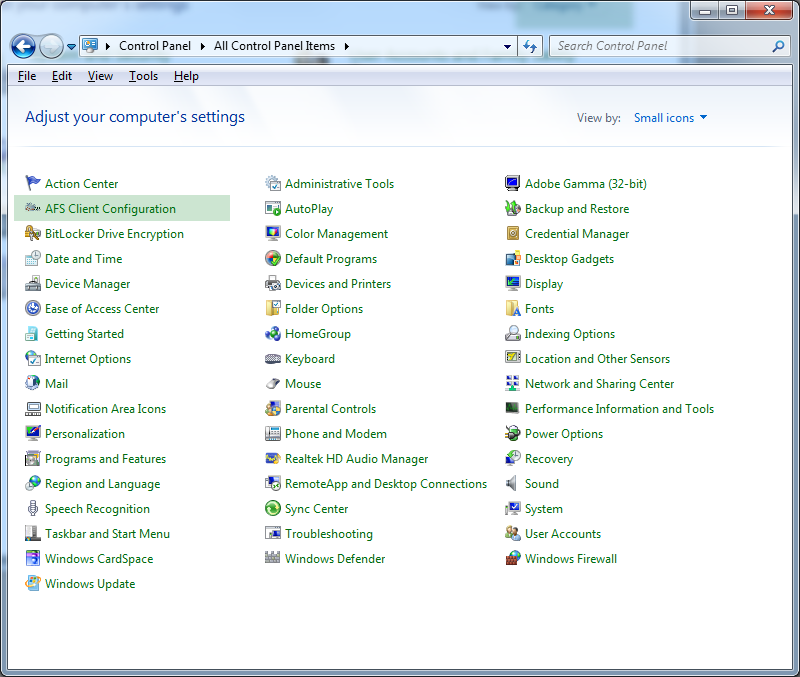
- Confirm that cell name is afs1.vcru.wisc.edu, then click on "AFS Cells" tab
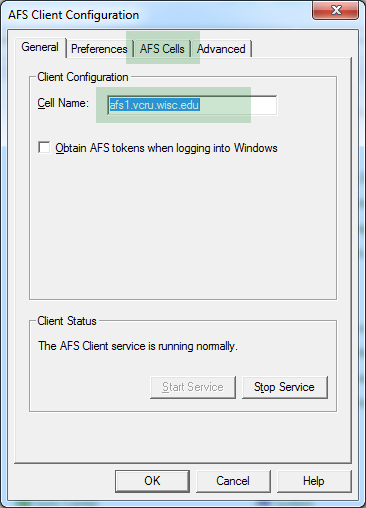
- Click "Add"
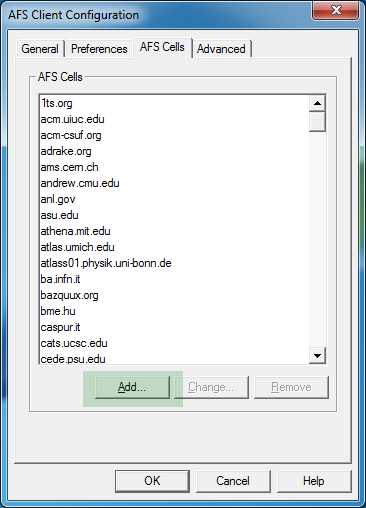
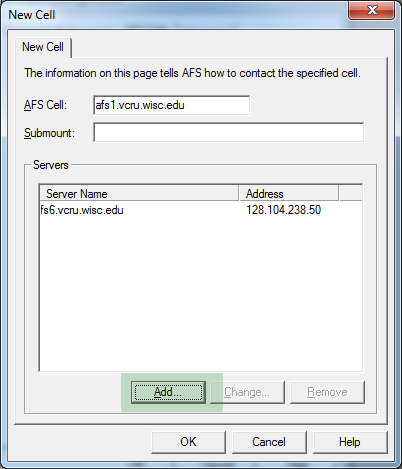
- For "AFS Cell", type in afs1.vcru.wisc.edu, then click on "Add"
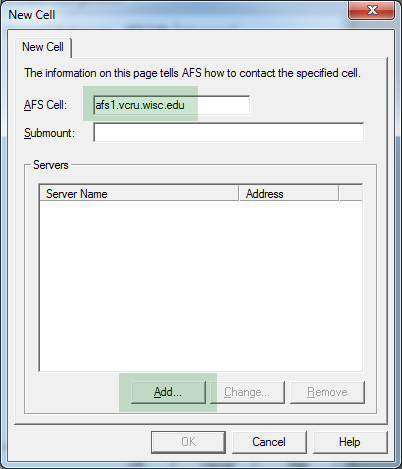
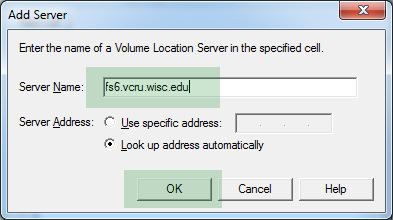
- For "Server Name", type in fs6.vcru.wisc.edu, then click on "OK"
- Click on "Add" again
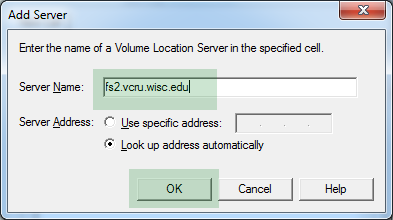
- For "Server Name", type in fs2.vcru.wisc.edu, then click on "OK"
- Click on "OK"
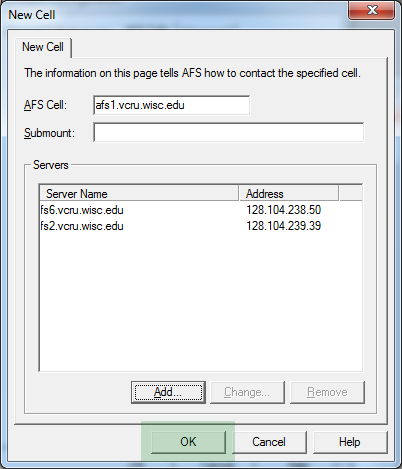
- Window should now look like this, click on "OK"
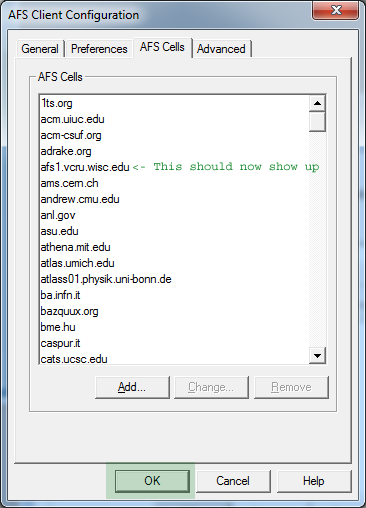
- Restart your computer a second time now
- AFS Dialog should show up automatically, enter your AFS user name and password.
Windows 8 did not work, we have to get tokens in the following way
In the start search box, type klog youafsusername and hit enter
Then type your AFS password
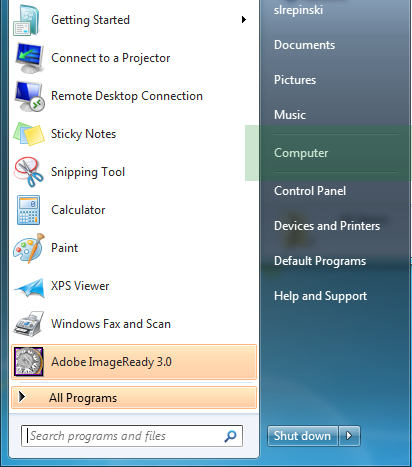
- In Start menu, Right click on "Computer" and select "Map network drive"
- Select an available drive letter, and enter you lab's path as shown in this example. Then click on "Finish"
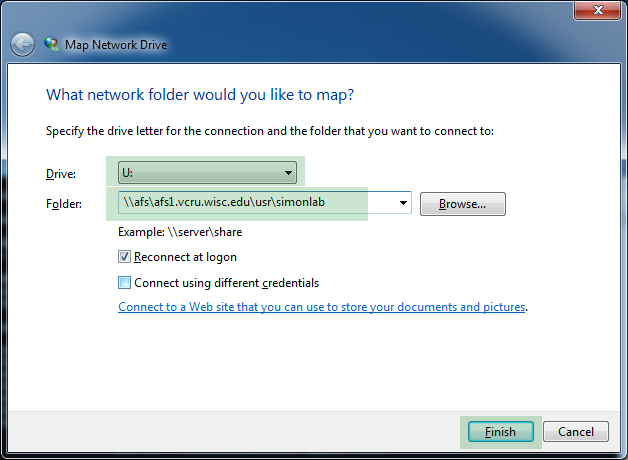
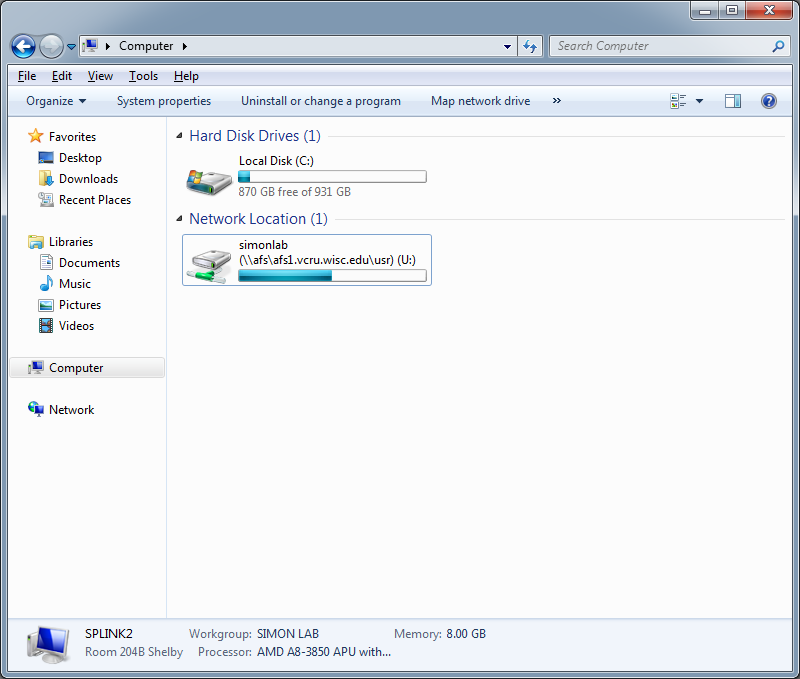
- This should be the result